How to Make Shorts with Claude

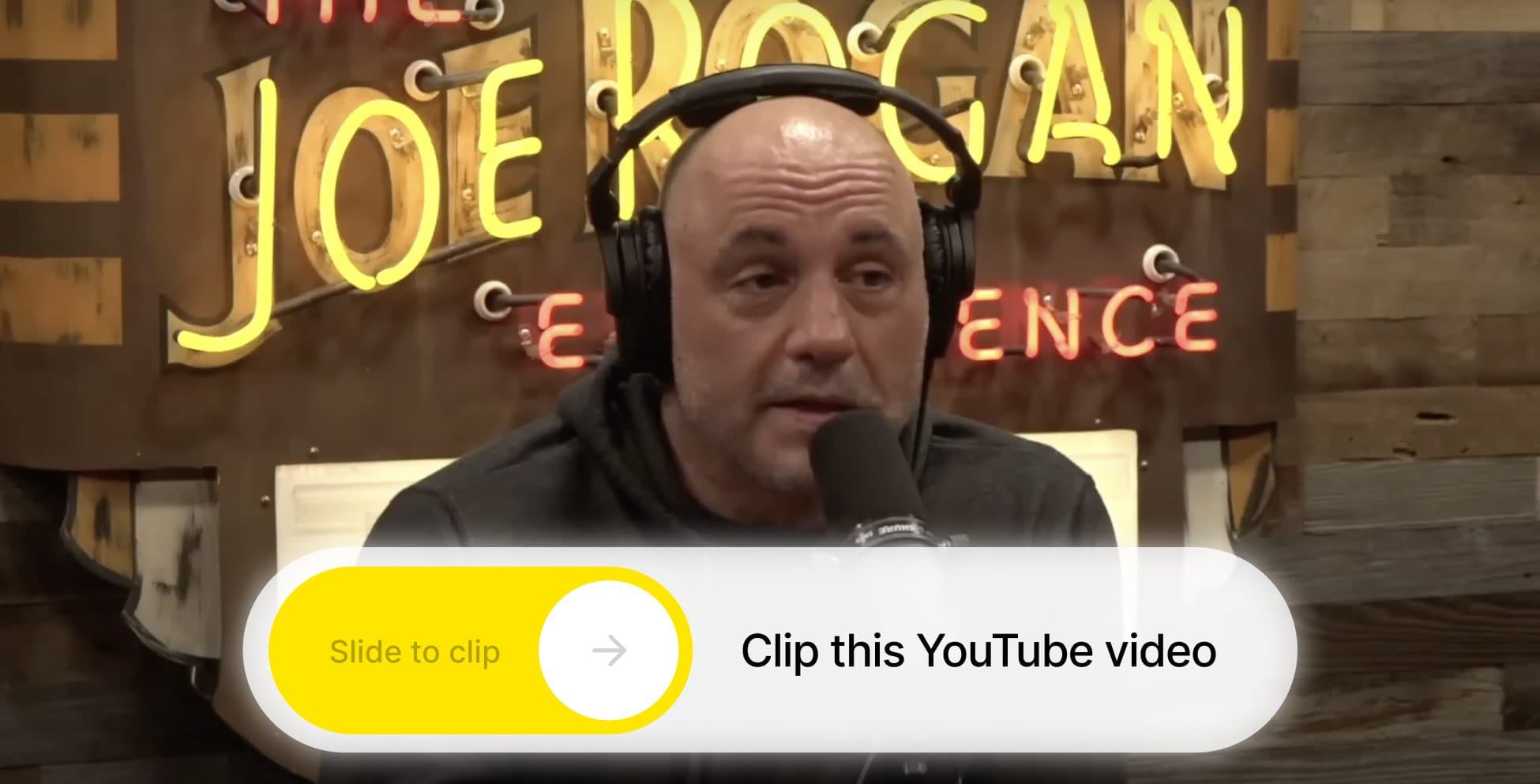
You can turn a long YouTube video into short clips without leaving Claude. SendShort connects to Claude as a custom connector (an MCP server). Then Claude can import the video, find the best moments, clip them into shorts with captions and schedule them to TikTok and YouTube.
This guide shows each step and the exact prompts to use.
What you need
- A SendShort Professional or Business plan. The AI Agent (MCP) is included From Professional ($29/month). See pricing.
- Claude on the web or Claude Desktop, where you can open Settings → Connectors.
- A link to a long video: YouTube, Twitch, Kick or a direct video link.
- To schedule posts: a TikTok or YouTube account that is connected in SendShort.
How SendShort Works in Claude
You write what you want in plain words. Claude picks the SendShort tool that does it. SendShort gives Claude 20 tools. This table shows the ones that this guide uses.
| Step | What you ask Claude | SendShort tool |
|---|---|---|
| 1. Connect | (one time, in Claude settings) | OAuth sign-in |
| 2. Check your plan | "What is my SendShort plan?" | get_status |
| 3. Import | "Import this YouTube video." | import_youtube, get_import_status |
| 4. Find moments | "List the best moments." | list_moments |
| 5. Clip | "Make 5 shorts with the Karaoke theme." | list_themes, clip_video, get_clip_status |
| 6. Schedule | "Schedule them to TikTok." | list_social_accounts, schedule_short |
The full list of tools is on the SendShort MCP page.
Step 1: Connect SendShort to Claude
Do this one time for your Claude account.
- In Claude, open Settings → Connectors.
- Click Add custom connector.
- Paste the server URL:
https://app.sendshort.ai/api/mcp - Click Connect.
- Sign in to SendShort and click Allow.
Claude signs in with OAuth. You do not paste an API key into Claude.
The same steps are in the SendShort app: Settings → Preferences → Connect your AI agent, on the Claude tab. To remove the connection later, open Settings → Preferences → Connected apps in SendShort.
Step 2: Check Your Plan and Quota
Start with a quick check. It tells you how many shorts you can still make and how many video slots are free.
What is my SendShort plan? How many shorts do I have left, and how many long-video slots are free?Claude uses get_status. It returns your plan, your long-video slots (a maximum of 8), your shorts quota and the rate limits.
Step 3: Import a YouTube Video
Paste the link and ask Claude to import it.
Import this video into SendShort: https://www.youtube.com/watch?v=VIDEO_ID
Tell me when the import is done.
Claude starts the import with import_youtube and checks it with get_import_status. The same tool also imports videos from Twitch, Kick and direct video links.
Your library holds up to 8 long videos at a time. When it is full, ask Claude to make space:
List my long videos and delete the oldest one.Claude uses list_videos and delete_video. The shorts that you made from a deleted video stay in your account.
Step 4: Find the Best Moments
SendShort’s AI finds the best parts of a long video. Ask Claude to show them before you clip.
List the AI moments for this video.Claude uses list_moments. Then you can pick moments by number, for example: “Use moments 1, 3 and 4.”
Step 5: Clip the Video into Shorts with a Caption Theme
First, see the caption themes:
Show me the SendShort caption themes.Claude uses list_themes. If you saved your own templates in SendShort, ask for them too (list_templates).
Then ask for the shorts:
Clip this video into 5 shorts with the Karaoke caption theme.
Cut the silences, add B-roll and translate the captions to Spanish.
Claude uses clip_video. You can set these options in plain words:
- the number of shorts, or the moments to use
- the caption theme or template
- crop and format
- B-roll, zoom and transitions
- silence cut and audio effects
- caption translation
Use a theme name from the list that Claude shows you. Clipping takes a few minutes. Ask “Is the clip job done?” and Claude checks it with get_clip_status. When the job is done, Claude gives you the MP4 download links.
To find shorts later, ask “List my latest shorts” (list_shorts) or “Give me the download link for this short” (get_short).
Each short counts toward your plan’s monthly shorts. Past the quota, an imported short costs 12 Credits. See long video to shorts for what the clipping AI does.
Step 6: Schedule the Shorts to TikTok and YouTube
Ask which accounts you can post to:
Which social accounts do I have connected in SendShort?Claude uses list_social_accounts. Then schedule the posts:
Schedule short 1 to TikTok tomorrow at 6 pm.
Schedule short 2 to YouTube on Friday at noon.
Claude uses schedule_short. To check or change the plan, ask “Show my scheduled posts” (list_scheduled_posts) or “Cancel the Friday post” (cancel_scheduled_post).
SendShort schedules to TikTok and YouTube only. For Instagram Reels and other apps, download the MP4 and post it yourself. The TikTok scheduler page shows the calendar in the app.
Example Prompts for Claude
Copy these prompts and change the links and times.
| Prompt | What Claude does |
|---|---|
| "Import this podcast episode and make 8 shorts with the Keyword Pop theme." | Imports, waits, then clips (import_youtube, get_import_status, clip_video) |
| "Make shorts only from moments 2 and 5, in 9:16, with silences cut." | Clips chosen moments (list_moments, clip_video) |
| "Give me the download links for the shorts you just made." | Gets the MP4 links (get_clip_status) |
| "Schedule one short a day to YouTube, starting Monday at 9 am." | Schedules each short (schedule_short) |
| "List my slideshows and schedule the newest one to TikTok on Saturday at 10 am." | Schedules a TikTok photo post (list_slideshows, schedule_slideshow) |
| "Make a music video from this SoundCloud link with the aesthetic background." | Starts a music video (create_music_video). See the music video guide. |
| "Which of my posts failed this week?" | Lists failed and published posts (list_scheduled_posts) |
What Claude Cannot Do with SendShort
- No new slideshows, faceless videos or AI avatars. No MCP tool makes them. Make them in the app with the AI slideshow maker, the faceless video generator or the AI avatar video generator. Claude can list and schedule slideshows that you already made.
- No posts to Instagram or Facebook. Download the MP4 and post it yourself.
- Rate limit. The MCP server allows 120 requests a minute, shared with the SendShort API.
Use SendShort in Other AI Agents
SendShort works with Claude, ChatGPT and Grok Bot, and with coding agents such as Claude Code, Codex and Cursor. The steps are almost the same:
- How to use SendShort in ChatGPT
- How to clip YouTube videos with Claude Code
- SendShort for Grok Bot
- SendShort for Claude and the AI Agent overview
FAQ: SendShort in Claude
Can Claude make short videos with SendShort?
Yes. Claude can import a long video, clip it into shorts with captions, make a music video and schedule posts to TikTok and YouTube. Claude cannot make slideshows, faceless videos or AI avatars. Make those in the SendShort app.
Which SendShort plan do I need for Claude?
You need the Professional or Business plan. The AI Agent (MCP) is included from Professional ($29/month).
Do I need an API key to connect Claude?
No. Claude signs in with OAuth when you click Connect and then Allow. Other MCP clients can use an API key that starts with ss_sk_ in the Authorization header.
Can Claude post my shorts to Instagram?
No. SendShort schedules to TikTok and YouTube only. For Instagram, Facebook and other apps, download the MP4 file and post it yourself.
Where do I get the video files?
Ask Claude for the download links. Claude uses get_clip_status or get_short, which return a link to the MP4 file of each short.
How do I disconnect Claude from SendShort?
In SendShort, open Settings, then Preferences, then Connected apps, and disconnect Claude. You can also remove the connector in Claude’s settings.
Thanks a lot for reading this,
David Ch
Head of the Editing Team at SendShort
About the author
David leads the editing team at SendShort. With this help, the team delivers the latest guides on using your favorite social media apps and creating short-form content.